> For the complete documentation index, see [llms.txt](https://docs.nickarce.com/llms.txt). Markdown versions of documentation pages are available by appending `.md` to page URLs; this page is available as [Markdown](https://docs.nickarce.com/bricks-mega-menu/docs/getting-started/add-your-logos.md).
# Add Your Logos
## Add Your Desktop Logo
***
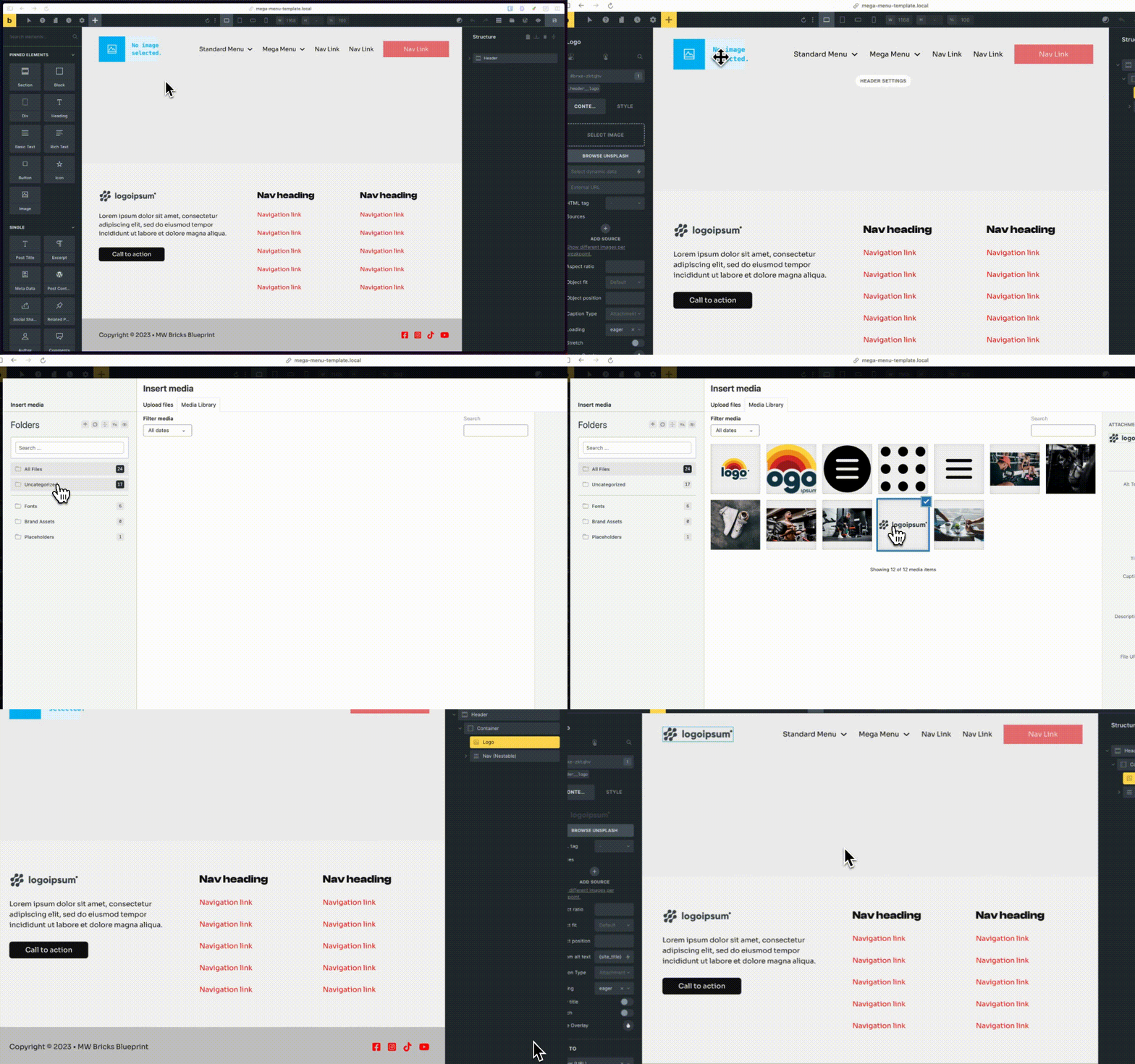
1. find layer "logo" and select your image
2. update any of the information found on the content tab of the image. It is setup to get you started with a preferred set of settings.
## Add Your Mobile Logo (if desired)
***
Feature added with V1.5
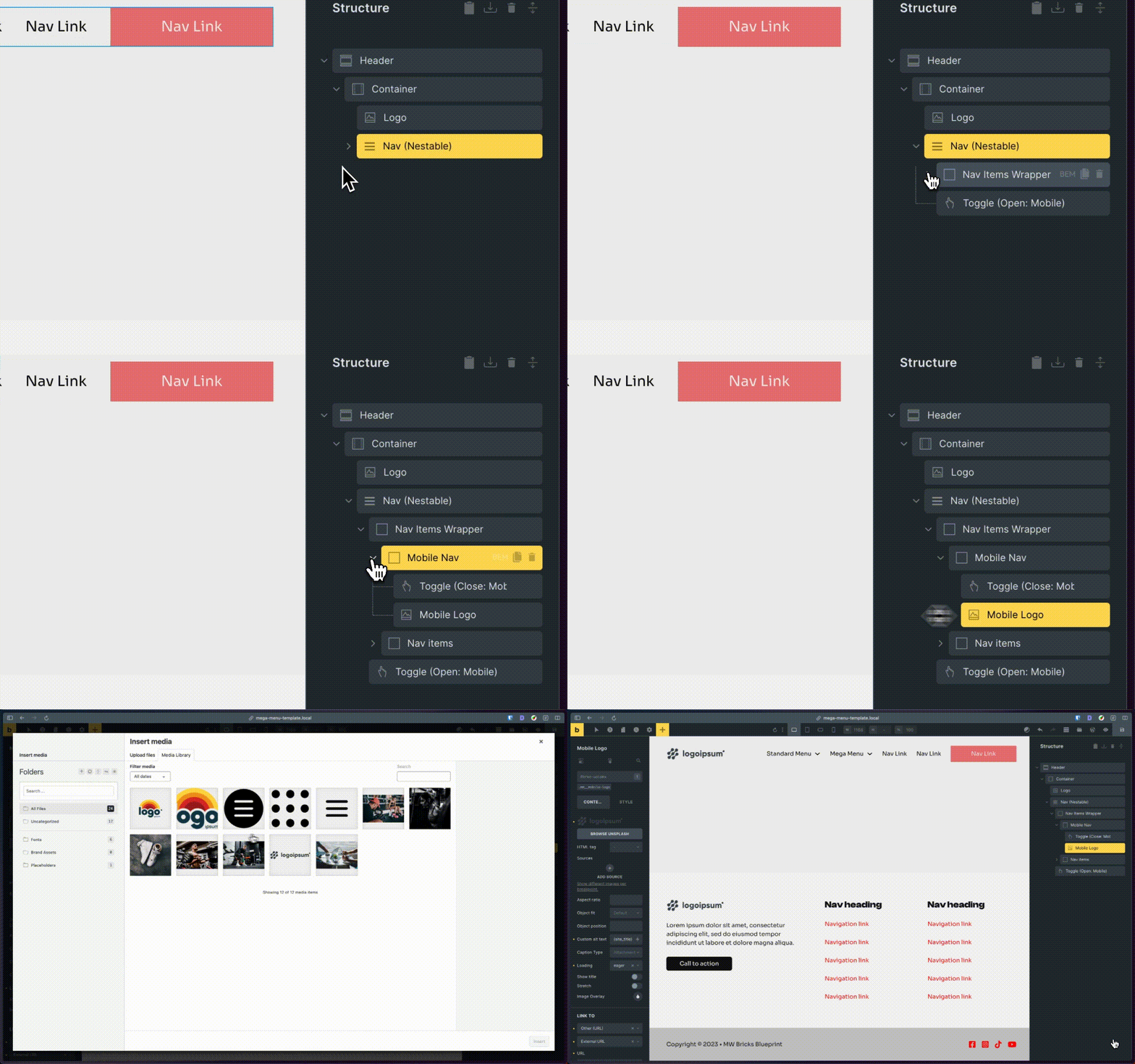
1. Find layer "mobile logo" and select your image
2. Navigate to your SCSS sheet and look for $mobile-logo and change it's value to "true"
```scss
$mobile-logo: false; // SELECTION (true/false)
```
{% hint style="info" %}
The mobile logo will not show on all browsers. It will show for browsers that support :has() see this link for browser compatibility
{% endhint %}
3. In your SCSS sheet look for $mobile-logo-height and change its value to your preferred mobile logo height.
```scss
// WHAT HEIGHT DO YOU WANT THE LOGO? ******
$mobile-logo-height: 3rem;
```
### Q: What if you dont want a mobile logo?
A: You can delete the item "Mobile Logo" from the structure panel. The relevant CSS for it will not load unless you have $mobile-logo set to true.